Shift Scheduler Blog
Conditional Slots: Adjust Staffing to Who Is Already Working
Some shifts need an extra pair of hands only when another team is short. A manager who helps on the restaurant floor might remove the need for a second waiter. A fully staffed care team might allow a smaller nursing team under your staffing policy. Conditional slots let the schedule reflect those arrangements without changing the weekly template every day.
A slot is one place to fill on a shift. Making it conditional means it remains required until its condition is satisfied. It then appears as Covered and no longer counts as an open slot. The condition reduces minimum staffing demand. Auto-scheduling may still assign people within the configured slot capacity, for example to meet their requested hours. An assigned position is never also counted as Covered. It does not move someone to another location, create their supporting shift or give them duplicate working hours.
Set up a condition in the location editor
- Open Locations and edit the location whose staffing requirement can be reduced. Set up the regular shift slots in its weekly pattern first. The supporting shift templates should also be present in the relevant locations’ weekly patterns so you can select them.
- Under Conditional slots, choose Add condition and select the target shift template.
- Choose Number of slots and enter how many places can become unnecessary. Choose All slots only if the whole requirement for that template can be covered.
- Under When the following are filled, select each supporting location and shift template. Set At least to the number of distinct people who must actually be assigned there.
- Select the applicable Days, check the summary and click Save condition. Finish by saving the location itself.
Every requirement inside one condition must be met. The comparison uses the same shift start date, not an automatic check that the shift times overlap. Choose supporting shifts whose hours make sense for your operation. Conditions apply only on the selected weekdays, and can never cover more slots than exist after any date-specific changes.
Example 1: two care teams and a nursing team
You have three locations: Nurses, Caregivers 1 and Caregivers 2, each with a Day shift. Your team’s policy is to schedule two nurses when each caregiver location has two people. If both caregiver locations have at least three people assigned, only one nurse is needed. These are this example’s staffing arrangements, not a general staffing ratio.
Keep two Day slots at Nurses. Add a condition targeting Day with Number of slots: 1, then select both of these requirements in that same condition:
- Caregivers 1 → Day → At least 3.
- Caregivers 2 → Day → At least 3.
| Caregivers 1 assigned | Caregivers 2 assigned | Nurses required |
|---|---|---|
| 2 | 2 | 2 |
| 3 | 2 | 2 |
| 2 | 3 | 2 |
| 3 | 3 | 1 |
Three people in just one team is not enough. Because both requirements belong to one condition, both thresholds must be reached on the same start date. Counts are minimums: four people in one team and three in the other also satisfy the condition.
The condition does not add a third caregiver slot or assign that person. Arrange the additional caregiver capacity and assignments separately when needed. Until three people are actually assigned in each team, both nurse slots remain required. If a supporting assignment is removed from a 3+3 day, the second nurse slot becomes required again; it becomes open if nobody is already assigned to it.
Example 2: a restaurant manager helps during busy periods
The restaurant normally needs two waiters on the Day shift. When the manager is working and can help with a rush of orders, one waiter is enough. In the screenshots, the two locations are named Restaurant and Manager office, and both use the Day template.
Edit Restaurant and keep its two daily slots. Add a condition for Day → Number of slots → 1. Under the supporting requirements, select Manager office → Day → At least 1. Select Every day, save the condition, then save the location.
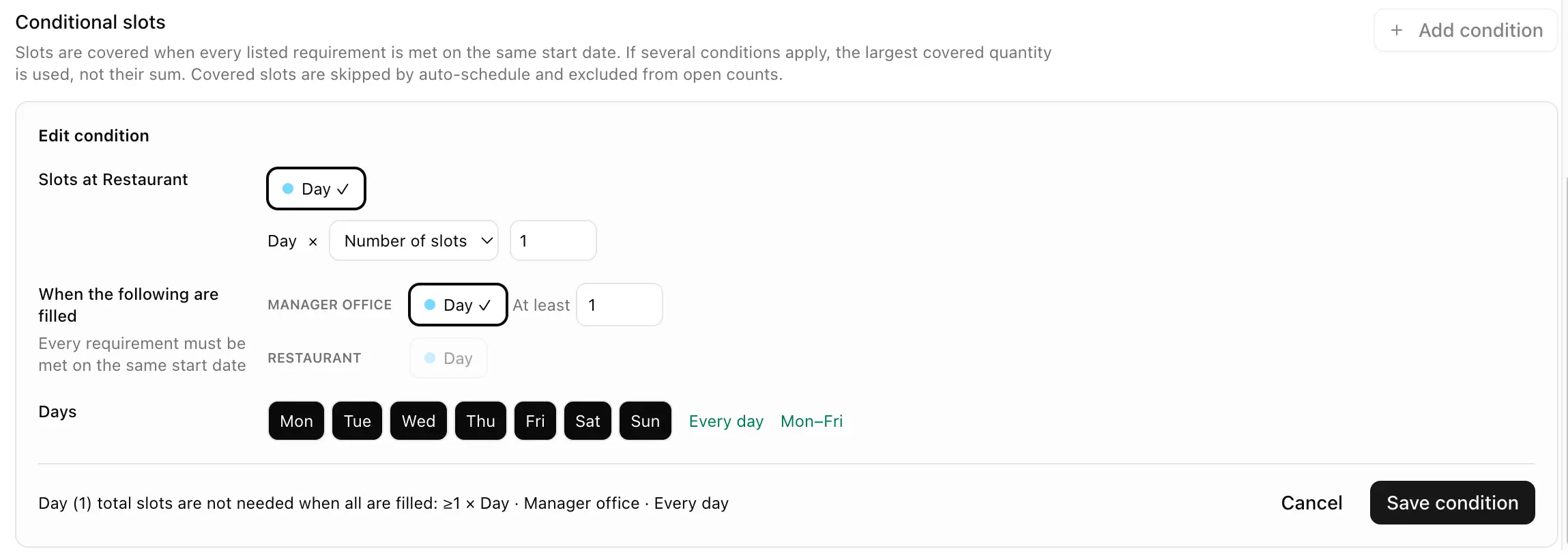
The condition applies to one Restaurant slot. The manager’s assignment stays at Manager office. View the setup screenshot at full size.
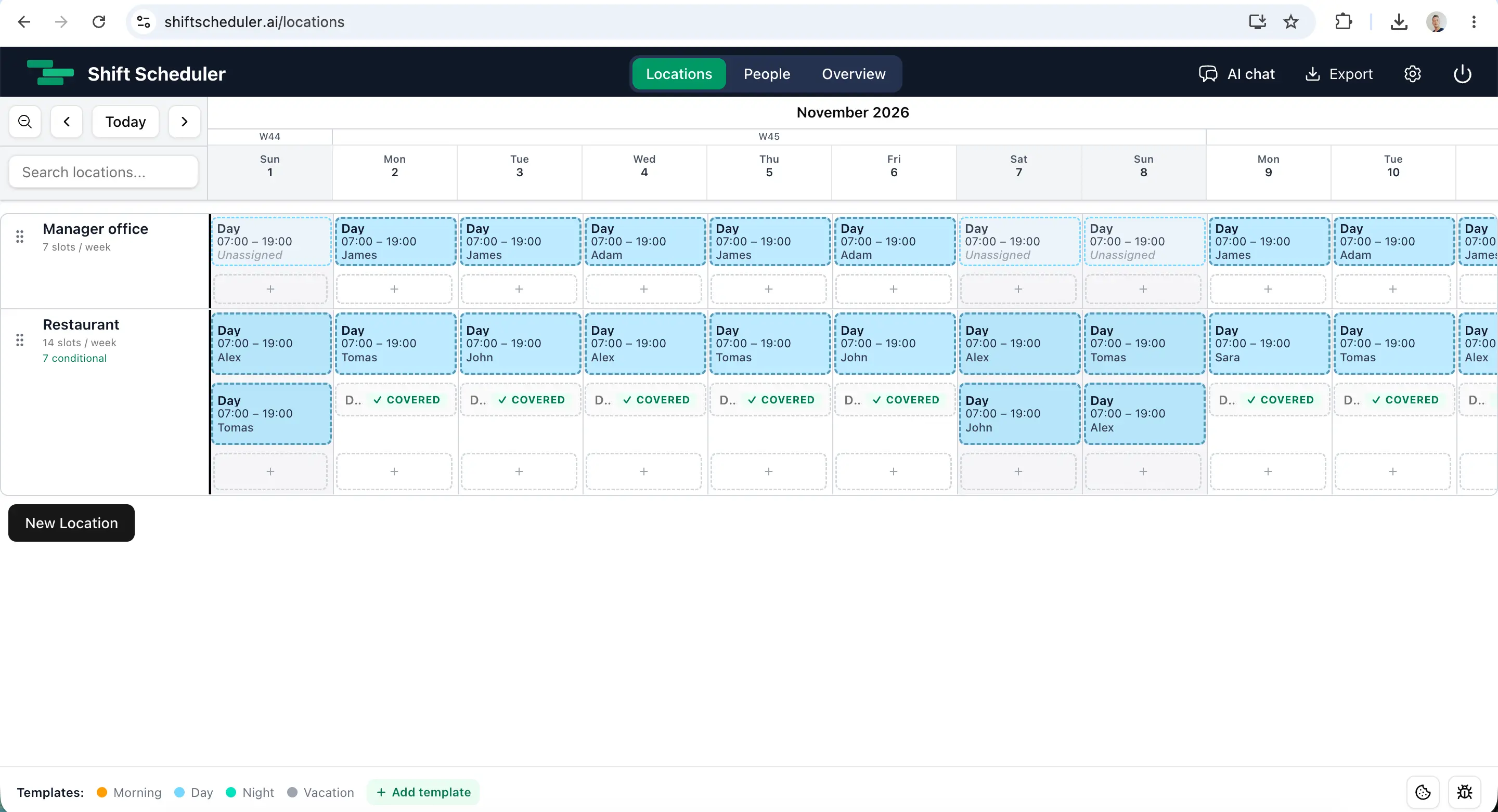
In this schedule, the manager works on weekdays. One Restaurant slot is Covered on those dates; on the displayed weekend dates, both waiter slots are staffed. View the schedule screenshot at full size.
An empty manager slot is not enough: a person must be assigned to it. The rule applies every day, so an assigned weekend manager would also satisfy it. The manager does not receive a second Restaurant assignment or extra hours just because they cover the conditional requirement.
Reciprocal and circular conditions: what actually covers what?
Sometimes two roles can cover for each other. For example, a Reception shift might be unnecessary when Guest services is staffed, and vice versa. Configure each direction separately; saving one condition never creates the reverse.
With one slot on each side, two empty slots both remain open. Assigning a person to Reception can cover Guest services. Both sides may be staffed, including by auto-scheduling, when their configured capacity and other scheduling rules allow it. If one side remains empty, actual staffing on the other can cover it. Two empty slots cannot cover each other.
Larger circles are also allowed, and their direction matters. Imagine one slot each at Reception, Guest services and Concierge:
- Reception is covered when Guest services is staffed.
- Guest services is covered when Concierge is staffed.
- Concierge is covered when Reception is staffed.
If Reception is staffed and Concierge is empty, Concierge is covered, but Guest services still needs an actual Concierge assignment. The Covered placeholder does not count as a working person. Auto-scheduling may also staff Concierge; its actual assignment can then cover Guest services. Each position counts as staffed, covered, or open exactly once.
If your intention is that any one of the three roles covers the other two, give each target two separate conditions: one for each of the other roles. For Reception, that means one condition for Guest services and another for Concierge. Repeat for the other two targets. Putting both sources in a single condition would require both, rather than either one. A condition cannot refer directly to its own location and shift template.
What changes when you generate or repair a schedule?
The scheduler considers both assignments it creates and eligible existing work, including supporting work outside the selected scheduling scope. Covered positions remain visible in Locations, are excluded from open-slot counts and appear as covered in location schedule exports. They do not create shifts or hours of their own.
Existing assignments are preserved even if a condition would now allow fewer people. Generation, repair and schedule evaluation use the same coverage logic. Removing supporting work makes the dependent requirement return; it does not automatically assign a replacement.
Conditions do not override eligibility, availability or independent staffing-minimum rules. If you also require two actual nurses through a separate binding rule, reducing the slot demand does not cancel that rule. See how to use scheduling rules for those controls.
Frequently asked questions
Do several conditions add their reductions together?
No. For the same target capacity, the largest satisfied reduction applies. If one condition covers one slot and another covers two, meeting both covers two in total, not three. To express either of two ways to cover one slot, create two separate conditions targeting that same one-slot quantity.
Does a night shift count for the day it finishes?
Conditions match the shift start date. A night shift beginning on Monday belongs to Monday for this comparison, even if it ends on Tuesday. Matching dates alone does not verify overlapping hours.
Can leave, an empty slot or a Covered label satisfy a condition?
No. Supporting coverage requires actual assigned work that counts toward coverage. Leave, empty slots, work excluded from coverage and covered placeholders do not qualify. Repeated records for the same person in the same location/template/date count as one person.
What if a referenced location or template is deleted?
The condition is marked as needing attention, and the missing resource cannot provide coverage. Edit the condition to select a valid location and regular-work template, or remove the condition, then save the location.