Shift Scheduler Blog
Overtime Tracking: Opening Balances, Weekly Contract Hours and Payouts
The Overtimes tab in Shift Scheduler keeps each employee’s starting hours balance, weekly contract norm and overtime payouts together. The weekly norm defines expected hours, the schedule supplies credited hours, and the balance rolls into the next month after paid overtime is deducted.
Open People, edit a person and select Overtimes. For a new person, save their profile first, then reopen it to manage these settings.
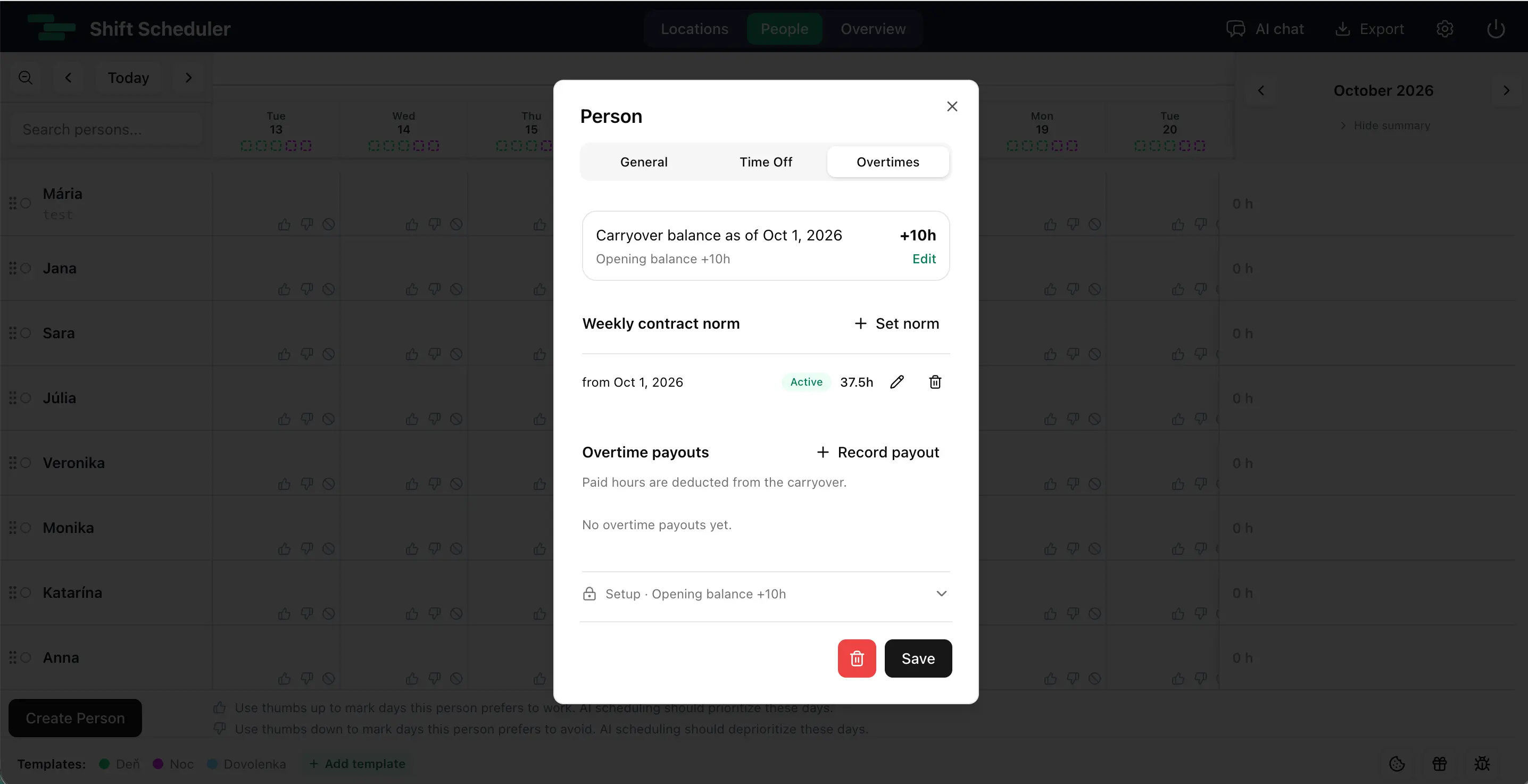
Set the initial balance when you start tracking
The Starting balance is the surplus or deficit the employee brings into Shift Scheduler. Enter 10 if they already have ten hours in credit, -5 if they start five hours below their expected total, or 0 for a fresh start.
- Under Weekly contract norm, choose Set norm, enter the first effective date and hours per week, then save the entry.
- Click Edit beside the opening balance, or expand Setup at the bottom of the tab.
- Enter the Starting balance and use the main Save button at the bottom of the person dialog.
The initial balance applies from the first weekly norm’s effective date. There is no separate starting date to maintain. Choose the date from which you have complete schedule data: hours before it are outside the running calculation. If tracking begins halfway through a month, only the tracked portion contributes to the balance, even though the export’s daily columns can still show earlier hours.
Set this balance once when migrating your records. You do not enter a new opening balance every month; Shift Scheduler calculates the carryover. Changing the starting balance later recalculates subsequent balances.
Use weekly contract hours to guide AI scheduling
The Weekly contract norm is the employee’s agreed weekly workload, such as 37.5 hours. Select Set norm, choose New norm from, enter Hours per week and save. When a contract changes, add a new dated entry. The previous norm remains in the history and applies up to the day before the new one starts. Use the pencil to correct an existing entry.
Expected hours are calculated as weekly hours ÷ 5 for each Monday–Friday covered by that norm. At 37.5 hours per week, that is 7.5 hours per weekday. A month with 22 weekdays therefore has 165 expected hours. Public holidays are not automatically subtracted from this calculation. Weekend shifts still contribute credited hours.
In balanced AI scheduling, recorded norms act as soft workload goals. They help the scheduler account for different contract hours while filling required shifts and distributing work. A 20-hour contract and a 37.5-hour contract should not be treated as the same workload. Effective dates also let the scheduler account for contract changes during a month.
A norm does not guarantee an exact result or impose a hard weekly limit. Required coverage and hard rules still take priority. Use scheduling rules for binding limits and the target-hours controls when requesting a specific monthly total. Opening balances and payouts belong to the reporting ledger; they do not automatically tell the AI to repay a surplus with fewer shifts.
Record overtime payouts in hours
When overtime is paid, choose Record payout under Overtime payouts. Enter the Date paid, a positive number in Hours paid, and an optional note such as “November payroll”. Check the projected month-end balance, then click Save payout.
A payout of 10 hours subtracts 10 hours from the balance in its payment month. It does not remove shifts or reduce the month’s credited hours. The tab records hours settled, not a monetary amount, pay rate or bank transfer.
Norm entries and payouts save through their own buttons. Finish or cancel an open entry before saving the person. You can edit or delete a saved payout; affected balances are then recalculated. A future-dated payout is marked Scheduled and affects its own month’s projection, not an earlier month’s balance.
Read the monthly overtime export
Choose Export → Export hourly report, select a month and download the Excel file. This is the export with the overtime ledger; the people and location schedule exports serve a different purpose.
Each employee’s row includes Weekly norm (h), Carryover in, daily hours, Total credited hours, Difference from norm, Overtime paid (h) and Carried to next month.
Credited hours = scheduled shift hours after breaks + approved time-off hours. Pending or rejected time-off requests do not count in this report. AI planning also reserves and credits pending time off, so its planning totals can differ from the export until requests are approved.
For a full month after tracking starts, the calculation is:
Carried to next month = carryover in + credited hours − expected hours − overtime paid.
The monthly difference and the accumulated balance answer different questions: a negative difference can reduce an existing surplus without making the closing balance negative.
A three-month example: October to December 2026
Suppose Anna starts tracking on 1 October 2026, with +10 hours brought forward and a 37.5-hour weekly norm. October, November and December have 22, 21 and 23 Monday–Friday days, so expected hours are 165, 157.5 and 172.5. Assume her recorded shifts and approved time off produce the totals below, and 10 hours are paid on 20 November. All figures are hours.
| Monthly export | Weekly norm | Carryover in | Total credited | Difference from norm | Overtime paid | Carried to next month |
|---|---|---|---|---|---|---|
| October 2026 | 37.5 | +10 | 180 | +15 | 0 | +25 |
| November 2026 | 37.5 | +25 | 150 | -7.5 | 10 | +7.5 |
| December 2026 | 37.5 | +7.5 | 180 | +7.5 | 0 | +15 |
October closes at 10 + 180 − 165 = +25. November closes at 25 + 150 − 157.5 − 10 = +7.5. December adds another 7.5 hours, leaving +15 hours to carry into January 2027.
What will you see three months later? When you open the tab in January 2027, the summary shows +15 hours as of 31 December 2026, while the original opening balance still reads +10 hours. January’s hourly export starts with +15 in Carryover in. November’s payout remains visible in the payout history and in November’s export; it is not deducted again in December or January.
This is an example, not a forecast: future results depend on the shifts, approved absences and payouts actually recorded. Re-exporting an older month uses the data currently saved. Correcting a past shift, norm or payout can change that month and every later carryover. Already downloaded files stay unchanged.
Frequently asked questions
Why does the balance show the end of last month?
The summary normally shows carryover as of the previous month’s final day, rather than a running total for today. If the first norm starts in the current month or a future month, it shows the initial balance at that start date instead. The payout preview projects the end of the selected payment month.
Why is the balance blank or shown as a dash?
A weekly norm must be effective on or before the period being calculated. Set the first norm to establish the tracking start. Without it, the app cannot calculate the expected hours and running balance.
What happens if weekly contract hours change halfway through a month?
Add a norm with the new effective date. Each weekday uses the norm valid on that date. The export’s weekly-norm field shows separate date segments for the month, preserving the earlier contract period.
Does recording a payout pay the employee?
No. It records a number of paid overtime hours and deducts them from the carryover. Payment amounts and the payment itself are handled outside this tab.
Do I need to reset the balance at year-end?
No. Carryover continues across months and years. In the example, December’s +15 hours become January’s opening carryover without another setup entry.