Shift Scheduler Blog
Target Hours Per Employee: Open Shifts, an Hours Range, or an Exact Monthly Number
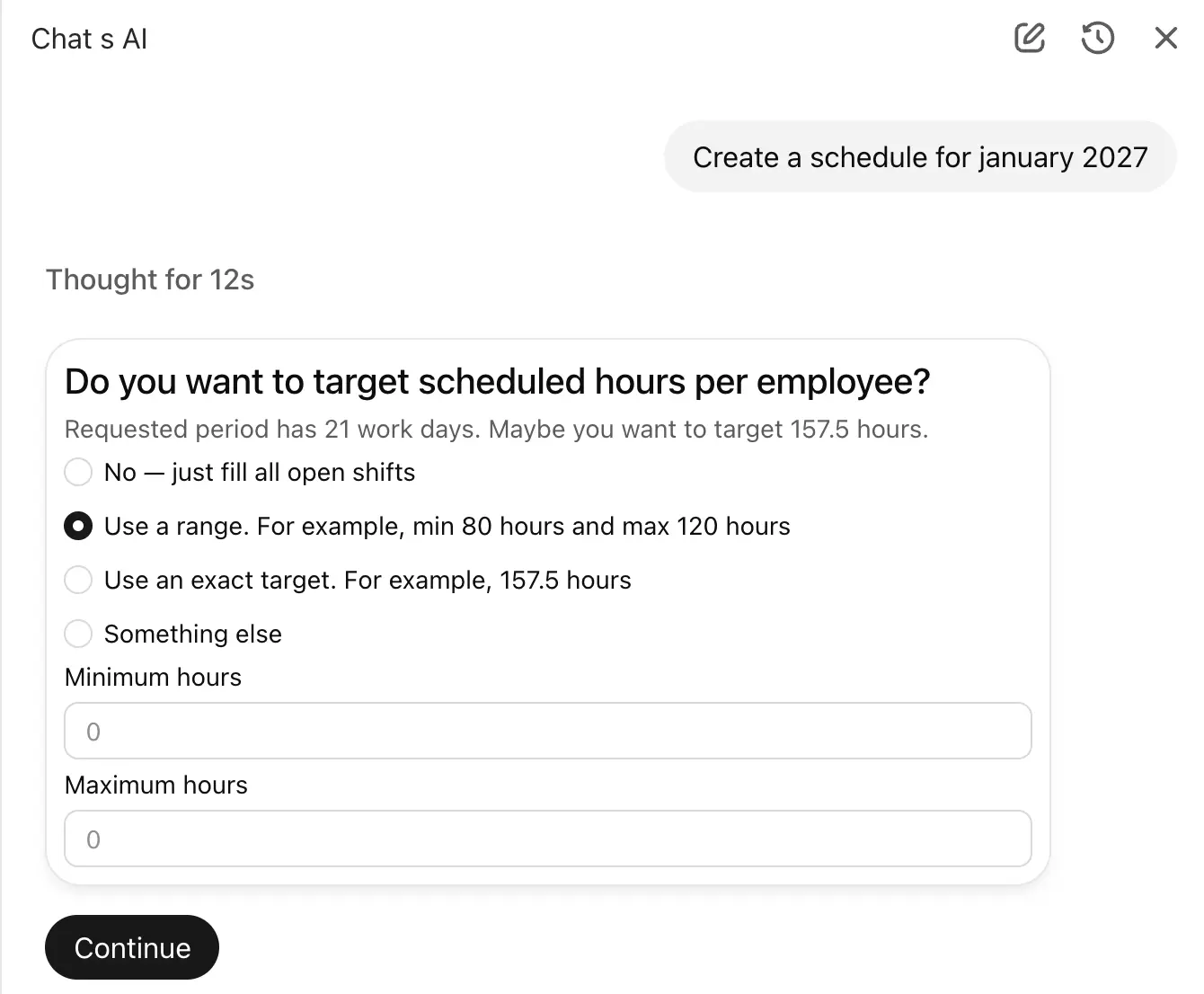
Ask Shift Scheduler's AI assistant to build a schedule and it now asks one question before doing anything else: what should each employee's hours add up to? You answer with one of four modes — fill all open shifts and nothing more, keep everyone inside an hours range, hit an exact monthly number, or describe the goal in your own words.
Whatever you pick becomes the thing the solver optimizes for. Nothing is written to your calendar until you have answered.
The Assistant Asks Before It Schedules
The scheduled-hours question is not a setting you switch on. Every request to build or update a schedule opens with it.
The card appears in the language you are chatting in, with a summary of the period you asked for, four options, and a Continue button. Until you press Continue the assistant is read-only: it will not update rules, apply calendar actions, delete shifts, or run the scheduler.
It also appears when your original message already named a number. Write "schedule August, everyone on 165 hours" and you still get the card, because a number mentioned in passing is not the same as a number you confirmed. Nothing is pre-selected and no field is pre-filled.
One request covers up to 31 days, so a monthly schedule is one card and one answer.
The Four Modes At A Glance
| Mode | What you fill in | What the scheduler optimizes | Use it when |
|---|---|---|---|
| No — just fill all open shifts | Nothing | Maximum coverage first, then the lowest rule-penalty score | Coverage is the job and hours follow from it |
| Use a range | A minimum, a maximum, or just one of the two | Keeping every person inside the band, then coverage | Contracts have a floor and a budget or legal ceiling |
| Use an exact target | One number of hours | Landing every person on that number, then coverage | Contracted monthly hours must be met to the hour |
| Something else | A sentence in your own words | Whatever the assistant translates your sentence into | The goal is conditional, or differs person by person |
Where The Suggested Number Comes From
Above the options the card shows a line like Requested period has 21 work days. Maybe you want to target 157.5 hours.
That number comes from your own workspace, not from a default. It counts the Monday-to-Friday days in the period you asked for, inclusive of both ends, then multiplies by the length of the shift template your weekly coverage uses most often. Twenty-one business days at 7.5 hours each is 157.5.
Two things to know about it:
- Public holidays are not deducted, and neither is anyone's approved time off. The suggestion describes an uninterrupted month, so it is deliberately optimistic.
- It is only ever a hint. It appears as placeholder text in the exact-hours field, is never entered for you, and no option is selected by default.
If your workspace has no usable shift templates yet, the line reports the number of work days and offers no suggestion.
Mode 1: Just Fill All Open Shifts
This is the classic behaviour and the right choice for coverage-driven operations — a store that needs two people on the floor whenever the doors are open, a ward that needs a fixed headcount per shift.
The solver maximizes filled open slots first, then, with that coverage locked in, minimizes the total penalty from your soft rules and preferences. No hours goal is applied and no extra shifts are manufactured. Fairness still keeps totals reasonably even between people who are available for the same work.
Mode 2: An Hours Range
Enter a minimum, a maximum, or only one of the two.
A minimum of 80 with a maximum of 120 means anything between the two counts as on target: a person who lands on 95 hours contributes nothing at all to the deviation the solver is trying to remove. A minimum on its own is a floor with no ceiling. A maximum on its own is a ceiling with no floor.
A range is the honest answer whenever a contract has room in it. "At least 80, never more than 120" is easier to satisfy than a single number, and it leaves the scheduler free to respect your preferences inside the band instead of forcing shifts to hit a figure exactly.
One range applies to every person in the run. If your team mixes full-time and part-time contracts, either schedule the groups separately or use the exact target with per-person exceptions.
Mode 3: An Exact Target
Enter one number and every person in the run is aimed at it. You can carve out exceptions by naming them in the conversation: Everyone should reach 165 hours this month, except Maria, who should reach 100. The assistant resolves the names and passes the overrides through.
Internally an exact target is a range whose minimum and maximum are the same number, so finishing 5 hours over counts exactly as much as finishing 5 hours under.
Mode 4: Something Else
Pick this and type the goal in your own words: "keep everyone under their contract maximum but give Peter as many hours as possible", or "the same hours as last month".
The assistant reads the sentence and converts it into one of the three modes above, because those are the only things the scheduler itself understands. If your sentence is genuinely ambiguous it asks a follow-up question instead of guessing.
What Counts Toward The Hours
Before deciding whether anyone needs more work, the scheduler credits what they already have for the period:
- Shifts already on the calendar, including ones created outside this run
- Approved paid time off
- The shifts this run assigns them
Time off that has been requested but not approved behaves differently: it blocks the person from being scheduled and it feeds the fairness calculation, but it earns no hour credit. Approve it and it counts.
One consequence deserves stating plainly. Existing shifts are never deleted to bring somebody back under a maximum. If a person already sits at 130 hours from shifts on the calendar and you set a maximum of 120, they stay at 130 for that run. Hour bounds shape what gets added, not what gets removed.
Where Extra Shifts Come From
When you set a minimum or an exact target, the scheduler often has to create work your coverage does not require. It builds those extra shifts from the regular shift templates in your workspace, and it can place them on any date and at any location inside the run — including weekends, and including days where your recurring coverage has no open slots at all.
This is broader than it used to be. Earlier versions could only reuse a template that already appeared as coverage on that exact date and location, which put targets out of reach whenever the calendar was thin. The scheduler now works from the whole template catalogue. Shift lengths are still never stretched or trimmed to make a number come out even.
The pool of candidate extra shifts is bounded, sized from an estimate of how many additional hours the goal needs, so scheduling does not slow to a crawl exploring shifts nobody wants. If the first solve still leaves somebody short, the pool is rebuilt at full capacity and the problem is solved a second time — all before anything is written. A demanding target can therefore take noticeably longer than plain coverage.
What The Scheduler Optimizes First
With an hours goal set, the solver works through this order. Each level is settled before the next one is considered.
- Must rules, availability, blocked shifts, and your daily and weekly hour caps. These are hard: no hours goal can break them.
- The total distance between everyone's credited hours and the hours you asked for.
- The largest single person's distance, so nobody is left far off while the total still looks acceptable.
- Required open-slot coverage: fill as many slots as possible.
- The number of extra shifts created, kept as low as possible.
- Normal soft rules, preferences and dislikes.
- Distribution, shift mix and final tie-breakers.
Read that order carefully, because it changed. Hour deviation now outranks open-slot coverage. If filling a required slot would push somebody outside the hours you asked for, the scheduler leaves the slot open. That is the right trade-off when the hours are a contractual obligation and the coverage number is a target — and the wrong one when coverage is non-negotiable. If a shift has to be staffed no matter what, choose "No — just fill all open shifts", where coverage is optimized first and hours are not constrained at all.
Must rules never bend in either direction. A required rest gap, an unavailability, or a weekly hours cap blocks an extra shift even when that leaves a target unmet.
When The Hours Cannot Be Reached
Hour bounds are goals, not hard constraints, so the scheduler never fails just because a number is out of reach. It returns the closest schedule it can build and reports the gap.
The summary tells you, per person, the credited total, the shortfall or overage, and whether they finished inside the target. It also separates two very different causes: the scheduler ran out of candidate shifts to create, or your rules blocked the shifts that would have closed the gap. The first is usually solved by adding shift templates or widening the period; the second by revisiting a rule, an availability, or the size of the team.
A time-limited result is the best schedule found within the solver's budget, not proof that no better one exists. On a large or heavily constrained month, running again can produce a slightly better answer.
Worked Example
A retail location has 6 part-time staff, each on a contract of 7.5 hours per business day. August has 22 business days, so each person is aiming at roughly 165 hours.
The location's open-slot coverage for August adds up to about 120 hours per person. It was configured to keep the store staffed, not to guarantee anybody's contracted hours.
Choose "No — just fill all open shifts" and the schedule fills that coverage and stops, leaving everyone about 45 hours short. Choose the exact target and enter 165, and the scheduler fills the open slots, then adds extra shifts from your templates across the month, respecting rest rules and availability, until each person is at 165 or as close to it as the rules allow.
Now change the question. The same team is on flexible contracts with a guaranteed minimum of 80 hours and a payroll ceiling of 120. Choose the range, enter 80 and 120, and the outcome is completely different: nobody is pushed toward 165, everyone lands somewhere inside the band, and the scheduler spends its remaining freedom on your soft preferences instead of on chasing a number.
How To Use It
- Open a conversation with the AI assistant.
- Ask it to build or update the schedule for the period you need, up to 31 days.
- Wait for the scheduled-hours card and read the work-day count and suggestion in its summary line.
- Pick a mode, fill in the fields it reveals, and press Continue.
- Review the summary when the run finishes: how many shifts were required versus extra, the credited hours for the group, and any shortfall or overage per person.
You do not need to do the arithmetic first. If you know the daily hours and the number of business days, say both and let the assistant work it out, or take the suggested number when it matches your contracts.
FAQ
Can I set an exact number of hours for each person per month?
Yes. Choose the exact target option on the scheduled-hours card and enter the number. It applies to everyone in the run, and you can name exceptions in the conversation for people who should reach a different number.
What are the four scheduled-hours options?
Fill all open shifts and nothing more; keep everyone inside an hours range; hit one exact number of hours; or describe the goal in your own words and let the assistant translate it into one of the other three.
Can I skip the question and just schedule?
Not entirely, but answering takes one click. Choosing "No — just fill all open shifts" is the same as scheduling with no hours goal at all, which is how Shift Scheduler behaved before this step existed.
Where does the suggested number of hours come from?
It is the number of Monday-to-Friday days in the period you asked for, multiplied by the length of the shift template your weekly coverage uses most often. Public holidays and approved time off are not deducted, so treat it as a starting point rather than an answer.
Can I set only a maximum, without a minimum?
Yes. In range mode you can fill in either field on its own. A maximum alone is a ceiling with no floor; a minimum alone is a floor with no ceiling.
Can different people have different hour targets?
Yes, in exact mode: give one number for everyone and name the exceptions in the conversation. A range applies as a single band to everyone in the run, so mixed contracts are better handled by scheduling the groups separately.
Will the scheduler leave open shifts unfilled to hit an hours target?
It can. When you set a range or an exact target, hour deviation is optimized before open-slot coverage, so a required slot is left open rather than pushing somebody outside the hours you asked for. Choose the open-shifts option when coverage must win.
Can it create extra shifts on weekends or on days with no open slots?
Yes. When a minimum or an exact target needs more work, the scheduler can place extra shifts on any date and at any location in the run, including weekends and days your recurring coverage does not staff. It builds them from your existing shift templates and never changes their length.
Does approved time off count toward the hours?
Yes. Approved paid time off is credited before the scheduler decides whether anyone needs extra shifts. Time off that is requested but not yet approved blocks scheduling but earns no hour credit.
Will it delete existing shifts to bring someone under a maximum?
No. Hour bounds decide what gets added, never what gets removed. Somebody already above your maximum because of shifts on the calendar stays above it for that run.
What happens if the hours cannot be reached?
You get the closest schedule the rules allow, plus a per-person report of the shortfall or overage and whether each person finished inside the target. The summary also says whether the scheduler ran out of shifts to create or whether a rule blocked them.
Is this different from the automatic hour balancing Shift Scheduler already does?
Yes. Automatic balancing is relative: it keeps people's hours similar to each other when they are available for the same work. A range or an exact target is absolute: you state the number, and the solver optimizes toward it instead of toward a fair share it computed on its own.
Final Thoughts
Open-slot coverage answers one question: is this shift staffed? An hours goal answers another: did this person work the hours they were supposed to work? The scheduled-hours card exists so you say which of the two matters more, once, before the schedule is built, instead of discovering the answer afterwards.
Four options, one click. Open shifts when coverage is the job, a range when the contract has room in it, an exact number when it does not, and your own words when the goal is more complicated than a number.
If you have not read it yet, how Scheduling rules work is a good next stop, along with the glossary of shift scheduling and how continuous scheduling history keeps rest rules and fairness consistent across month boundaries.