Shift Scheduler Blog
Shift Preferences and Blocked Days: Let the Team Ask, Keep the Final Say
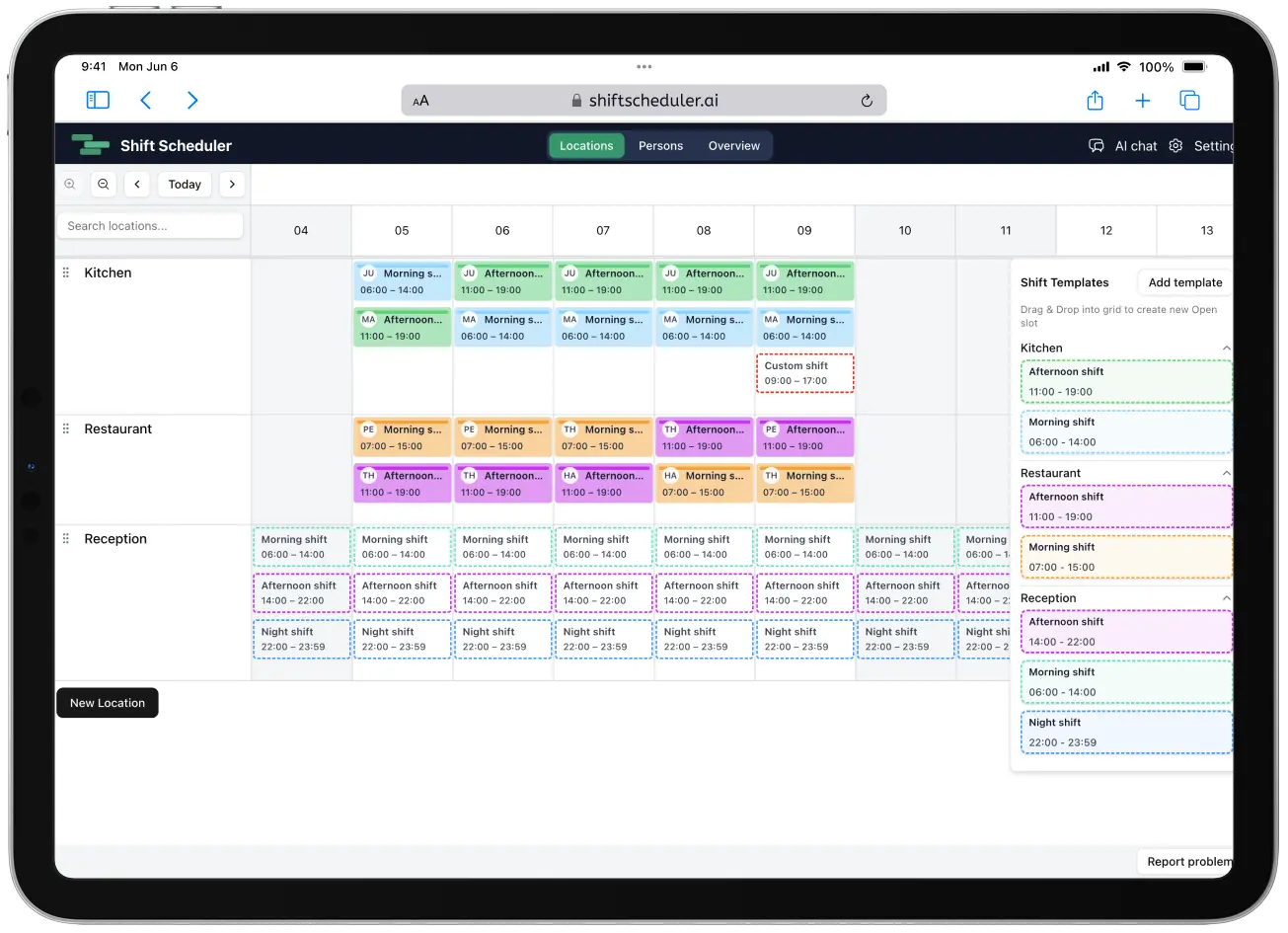
Every roster is a negotiation. Someone wants the Friday off for a wedding, someone else would rather work every Saturday because the shift pays better, and one person genuinely cannot be on the ward that Tuesday because they are away on training.
Shift Scheduler gives you two separate tools for that, and the most useful thing to understand about them is how differently they behave. A preference is a request. A blocked day is a rule. They sit next to each other in the calendar as three small icons, and they reach the scheduler as two completely different kinds of instruction.
Preferences and Blocked Days Are Not the Same Thing
| Preference (👍 / 👎) | Blocked day (🚫) | |
|---|---|---|
| Who can set it | Anyone, for their own days. Admins and managers, for anyone | Admins and managers only |
| What it means | "I would like this" / "I would rather not" | "This person is not available" |
| How the scheduler treats it | A soft signal, weighed against coverage, rest rules and fairness | A hard constraint that cannot be broken |
| Counts toward the monthly limit | Yes | No |
| Bound by the collection deadline | Yes, for members | No |
| Can be overruled by the solver | Yes, if coverage demands it | Never |
The practical consequence is worth saying plainly: a preference is never a promise. If someone asks for a day and coverage is tight, the solver may schedule them anyway, because a like is one term in a scoring function that also contains rest rules, contracted hours and fairness. If a day genuinely must stay empty, a preference is the wrong tool — block it.
Turning Preference Collection On
Everything lives in Settings → Preferences, and the first card has two switches.
Preference collection controls whether people can mark days at all. Turn it off and the thumbs-up and thumbs-down buttons disappear from the calendar everywhere in the app.
Blocked days is a separate switch. Some workspaces want the team to express preferences but have no use for blockers; others use blockers heavily and never collect preferences. Turning this one off hides the 🚫 button without touching anything people have already marked.
Both are on by default, so an existing workspace behaves exactly as it did before.
Deciding When People Can Ask
Underneath the switches sit the two bounds on when people can enter preferences. They work differently from each other, and the difference is deliberate.
How far ahead is a rolling horizon, measured in days from today. Set it to 90 and anyone can mark any day in the next three months, and nothing beyond that. It moves with the calendar rather than resetting on a date.
Deadline is a fixed calendar moment, and it refers to the month before the one being scheduled. Set it to the 10th at 23:59 and preferences for October lock on 10 September at 23:59. The settings page spells that example out as you type it, using next month's real name.
Both have an off switch. No limit on the horizon lets people mark any day that appears in the calendar; No deadline removes the lock, so they can keep changing their minds all month.
One rule of thumb for the horizon: keep it above 60 days. A deadline early in the previous month can sit up to about 61 days before the last day of the month it governs, so a shorter horizon would leave the end of that month still out of reach at the moment its deadline passes — those days could never be marked at all. The settings page warns you if you set a value low enough for that to happen.
The deadline binds members only. Admins and managers can always add or change a preference, including for a month that closed weeks ago — otherwise a single strict deadline would lock you out of fixing your own schedule.
Two Limits That Keep It Fair
The second card holds the limits. Both are unlimited by default.
Preferences per person is how many days one person can mark in a calendar month. Likes and dislikes count towards the same number: three means three marked days in total, in whatever mix they like. This is the setting that stops one enthusiastic person from marking twenty days and drowning out everyone else.
Preferences on one day is how many people can claim the same date. Once it is full, that day locks for everybody else. This is first come, first served — and that is what the small numbers are for.
Blocked days are exempt from both. They are an administrative act, not a request, so they never consume someone's monthly allowance and never fill up a day.
The Numbers Next to the Icons
When someone marks a day, a small number appears beside their thumb: 1., 2., 3.
That is their position in the queue for that date, in the order the requests came in. The first person to claim 5 October is 1., the next is 2., and the numbering starts again from 1. on 6 October. Blocked days never get a number, because they are not queuing for anything.
The queue reflects your current request, not your first one. Any change — switching a like to a dislike, narrowing it to particular shifts, clearing it and marking it again — puts you at the back, and anyone who claimed the day in the meantime moves ahead of you. Re-saving a preference without actually changing it does nothing, so nobody loses their place by opening the dialog and clicking through it.
Those numbers are not decoration. They are the record of who asked first, and the AI scheduler uses them directly. A request at 1. is worth 6,000 points, 2. is worth 3,000 points, and every later request is worth 1,000 points. For a thumbs-up, that score rewards a matching assignment; for a thumbs-down, it penalizes an assignment the person asked to avoid.
How People Mark Their Days
Members use People on desktop and mobile. They can mark preferences on their own row while the collection window is open and within the configured limits.
Admins and managers work in the People grid, where every person has a row and every day has the three small buttons in the corner of the cell. From here you can mark on someone else's behalf — useful when a request arrives by phone or in the corridor.
Either way, clicking a button opens a short dialog with one question: is this about the whole day, or about specific shifts? Marking the whole day says "I would like to work that Saturday". Picking the Night shift template says "I am happy to work that day, just not nights". The second is far more useful to the scheduler, because it leaves it somewhere to put you.
Blocked Days: Making Sure a Shift Is Never Scheduled
A blocked day is the tool for everything that is not negotiable.
Mark one and that person cannot be scheduled that day, full stop. Internally it lands in exactly the same place as approved time off: the solver is forbidden from assigning them, rather than discouraged from it. There is no weight to outrank and no coverage emergency that will override it.
It is also excluded from fairness. A blocked day does not count as a day the person was available and did not get work, so blocking someone for a fortnight of training does not quietly make the solver think they are owed extra shifts afterwards.
Like preferences, a blocker can cover the whole day or specific shift templates. That second form is the one worth remembering, because it expresses the most common real rule precisely:
- Whole day — away on a course, on secondment, working at another site, or simply not to be scheduled that day.
- Specific shifts — someone not yet signed off on nights, a new starter who should not be alone on the closing shift, an apprentice who cannot cover the till without a supervisor.
Members cannot set blockers, only admins and managers, which is the point: a blocker is an operational decision, not a request. It is not bound by the deadline either — you can add one the morning of the shift.
The Workflow: Let the Queue Guide AI, Use Manual Shifts for Guarantees
This is the part that decides whether the whole exercise feels fair to your team, and the order matters.
1. Let the deadline pass. Open the People grid for the month you are scheduling. Every marked day now carries its queue number.
2. Read the preferences before you schedule anything. Go day by day. The numbers tell you who asked first on each date and how strongly the scheduler will weigh each request.
3. Place only guaranteed outcomes by hand. The solver already gives the first request 6,000 points, the second 3,000 and later requests 1,000, so you do not need to recreate the queue manually. A manually created shift is still a fact — the solver treats it as fixed and schedules around it. If a request must be honoured, place it yourself; queue weight is strong but not a guarantee.
4. Add blockers for anything that must not happen. Training days, people not signed off on a shift type, anyone who should not be on a particular station that week.
5. Now run AI scheduling and let it fill everything still open. It keeps every shift you placed and counts them towards contracted hours and fairness, it cannot touch a blocked day, and it weighs each remaining preference by its queue position. Earlier requests win stronger bonuses or penalties, but coverage, rest rules, contracted hours and fairness can still overrule them.
The reason for this order is simple. Manual shifts and blockers are guarantees; queue-weighted preferences are optimisation. Set only the guarantees yourself, then let the solver do the arithmetic on what remains.
It also means you can explain the policy precisely: the first request gets six times the weight of an ordinary later request, and the second gets three times the weight. Neither becomes a promise unless you place the shift manually or block the unwanted assignment.
Suggested Settings for Common Situations
| Situation | Days ahead | Deadline | Per person | Per day |
|---|---|---|---|---|
| Small team, high trust | No limit | No deadline | No limit | No limit |
| Monthly roster published in advance | 90 | 10th, 23:59 | 3 | 1–2 |
| Popular weekends, lots of competition | 90 | 7th, 23:59 | 2 | 1 |
| Blockers only, no preference collection | — | — | — | — (turn preference collection off, leave blocked days on) |
If you are starting out, the middle row is a good default. Ninety days is comfortably clear of the 60-day floor, a deadline on the 10th leaves people a full week and a half to think, and three preferences per person covers the days that genuinely matter to someone without turning the calendar into a wish list.
FAQ
Who can add a blocked day?
Admins and managers. Members can mark likes and dislikes on their own days, but they cannot block a day for themselves — a blocker is an operational decision about availability, not a request.
Do blocked days count towards the monthly preference limit?
No. Blocked days are exempt from both limits. They never use up someone's monthly allowance and they never take a place on a day that has a capacity limit, so you can block as many days as the situation requires.
What do the small numbers next to the thumbs mean?
They are the person's position in the queue for that specific date, in the order the requests were entered. The first person to mark 5 October shows 1., the second shows 2., and the count starts again on the next day. Note that the number tracks the latest version of a request: if someone changes their preference after the fact, they move to the back of that day's queue. Use them to decide who to accommodate first.
Can people still change their preferences after the deadline?
Members cannot, but admins and managers can. The deadline is there to give you a stable set of requests to work from; it is not meant to lock you out of your own schedule, so anyone who can manage the roster can keep editing.
What happens if two people want the same day and only one place is left?
The first request in wins the place, and the day then locks for everyone else — their thumbs-up button is greyed out with an explanation. If someone withdraws, the place frees up again and the remaining queue numbers move up.
Does the AI scheduler have to follow a preference?
No. A preference is a soft signal weighed against coverage, rest rules, contracted hours and fairness. Queue position 1 carries 6,000 points, position 2 carries 3,000, and later positions carry 1,000, but the solver can still overrule any of them. If a day must be honoured, create the shift by hand before you run the scheduler, or use a blocked day for the reverse case.
Will AI scheduling overwrite the shifts I placed by hand?
No. Shifts already in the calendar are treated as fixed facts. The scheduler fills what is still open around them, and counts your manual shifts towards each person's hours and fairness.
Can someone mark a preference for one specific shift instead of the whole day?
Yes. When you click a thumb, the dialog asks whether the preference covers any shift that day or particular shift templates. Shift-specific preferences are usually more useful, because "not the night shift" still leaves the scheduler somewhere to put that person.
What happens to existing preferences if I turn preference collection off?
Nothing is deleted. The buttons disappear from the calendar and no new preferences can be entered, but everything already marked stays in the database and reappears the moment you switch it back on.