Shift Scheduler Blog
New in Shift Scheduler: Email Notifications That Let the Schedule Settle
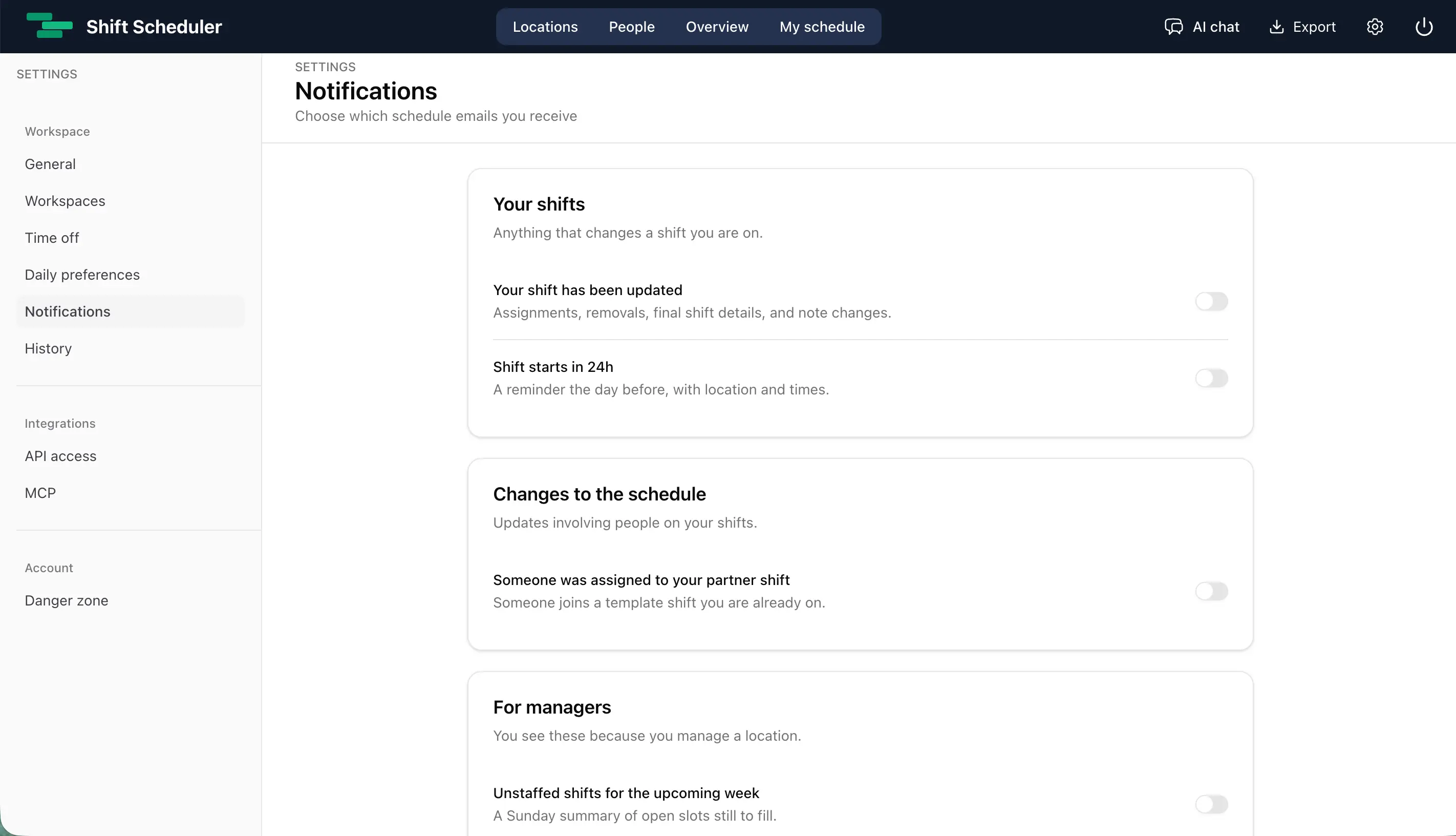
A schedule can change several times before it is truly final. Someone gets assigned, a time is corrected, a note is added, and an assignment may even be undone a few minutes later.
Shift Scheduler now offers email notifications that keep you informed without turning every click into another message in your inbox.
Choose the notifications that matter to you
Notification preferences are set separately for each workspace. All options are off by default, so you decide what you want to receive.
You can enable:
- Your shift has been updated. Receive an email when someone else assigns you to a shift, removes you from one, changes its final details, or adds or changes a note. The email tells you that the note changed without including its contents.
- Your shift starts in 24 hours. Get a reminder when an upcoming shift enters the next-24-hours window, including its date, time, and location.
- Someone was assigned to your partner shift. Find out when a new person joins the same type of shift on the same day while you remain assigned to it.
- Unstaffed shifts for the upcoming week. Managers and admins can receive a Sunday summary of open capacity for the coming Monday through Sunday. No email is sent when every shift is covered.
If several eligible updates are ready at the same time, Shift Scheduler combines them into one email for that workspace.
Why schedule updates arrive after 1–2 hours
Schedule-change notifications are intentionally not immediate.
After a change, Shift Scheduler waits until the shift has remained unchanged for at least 60 minutes. Notifications are then processed once per hour. This means an email will normally arrive between one and two hours after the final change.
Every new edit restarts that 60-minute waiting period. The delay lets the system compare where the shift started with where it ended and send only the result that still matters.
For example:
- If you are assigned and then unassigned within the waiting period, no notification is sent.
- If several details are edited, you receive one update with the final shift details.
- If a note is added and then removed before the shift settles, there is no note notification.
The 24-hour reminder and Sunday staffing summary follow their own schedules. The settling period applies to changes made to the roster.
You will not be notified about your own actions
When you make a direct change in Shift Scheduler yourself, you will not receive an email telling you about that same action. You already know what you changed.
Changes made by somebody else, the AI scheduler, or another automated process can still generate a notification when the relevant preference is enabled. This keeps notifications useful for updates you may not have seen yourself.
Turn notifications on
Open Settings → Notifications and switch on the categories you want for the current workspace. The manager summary is shown only to managers and admins.
You can return to the same page and change your choices at any time.